


AI Photo Enhancer & AI Studio
4.2365.00 Reviews
App Specs
- Version
- 3.8.229
- Updated On
- License
- Free
- Downloads
- 1,000,000+
- Developer
- Zetfun Studio
- Categories
- Photography
- Platform
- Android
Screenshots
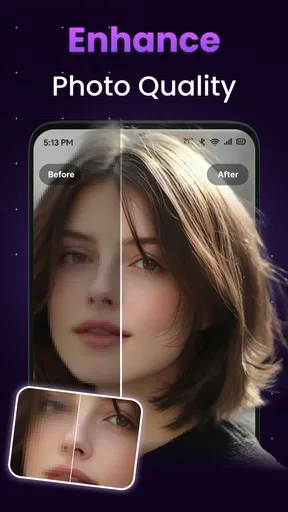
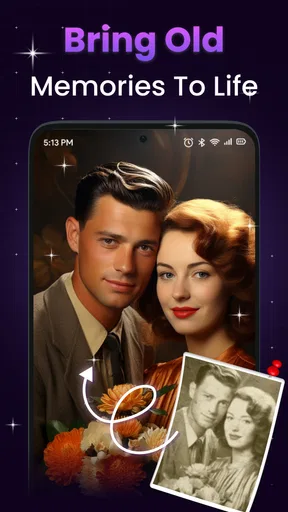
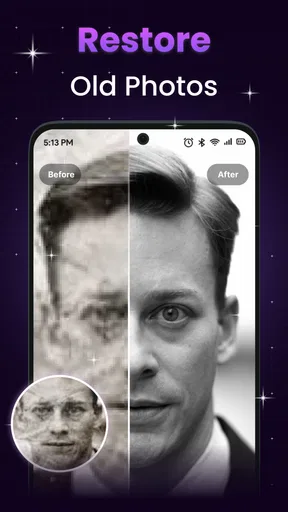
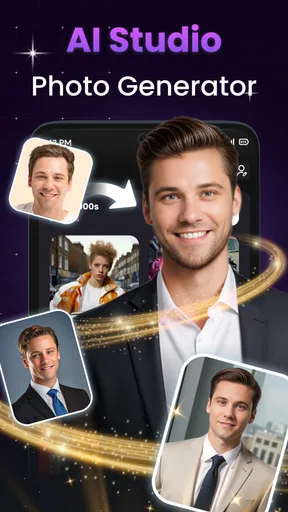
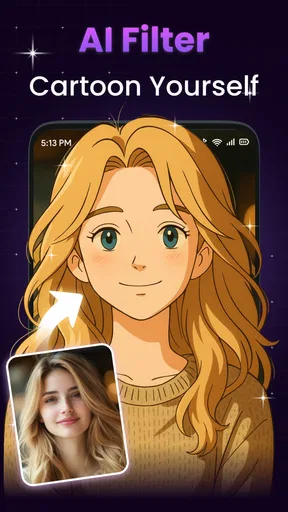
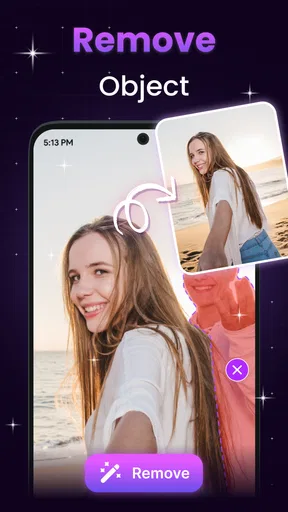
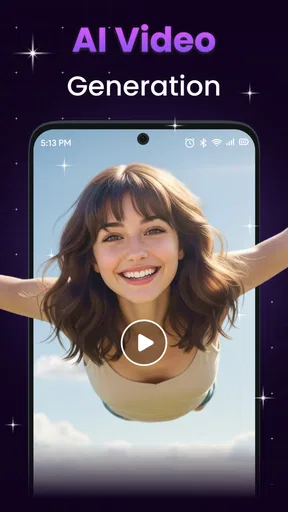
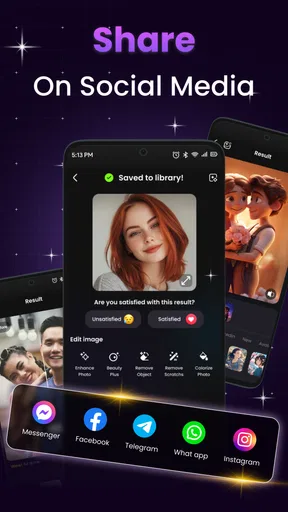
 Analysis by AppCompare
I tested AI Photo Enhancer & AI Studio as a practical photography app rather than treating it as a one-tap miracle. Its purpose is straightforward: take an old, soft, noisy, pixelated, or otherwise disappointing picture and try to make it look cleaner. In my experience, the interesting part is not simply whether the result looks sharper. It is how useful the app remains when I am working from a phone, dealing with a weak connection, deciding whether an image is worth processing, or trying to avoid wasting time on a result that cannot be rescued.
That makes this a more specific recommendation than “install it if you like photos.” I would consider it for family snapshots, scanned memories, social-media images, and pictures that are recognizable but too rough to share. I would not treat it as a replacement for a full photo editor, a camera app, or a professional restoration workflow. It belongs in the quick-repair part of my photography toolkit, where convenience matters as much as control.
What the app is really good at on a phone
The app comes from Zetfun Studio and sits in the Photography category. It is free to install, rated for Everyone, and has reached more than a million installs, with an average rating of 4.2 from roughly seventeen thousand ratings. Those figures suggest that the appeal is easy to understand: many people want a fast way to improve a picture without learning a complicated editing program.
The first thing I noticed is that the workflow is aimed at reducing decisions. Instead of asking me to adjust a long list of sliders before I can see a useful result, the app focuses on enhancement. That is valuable when the original image is an old screenshot, a compressed message attachment, or a photograph taken in poor light. I can judge the result visually and decide whether it is an improvement, rather than spending several minutes trying to remember which sharpening, noise, and detail settings work together.
Still, “enhance” should not be confused with “recover everything.” When an image contains enough information for the software to recognize edges and faces, the result can feel noticeably more presentable. When the source is extremely tiny, heavily blurred, or covered by compression damage, the app has much less to work with. A cleaner-looking face may also become slightly artificial if the processing tries too hard to invent detail. I recommend keeping the original beside the processed copy and comparing them at the same zoom level.
Why connectivity changes the experience
The network question matters more here than it does in a basic crop-and-filter editor. AI enhancement commonly involves heavier processing than ordinary brightness or contrast adjustments, so I pay attention to what happens when my connection is slow or unreliable. I would not begin an important restoration while traveling through an area with unstable service. The sensible approach is to choose a small batch, start with the most valuable image, and wait for the result before committing to a longer session.
This also affects expectations around speed. A photo that looks simple to a person can still require substantial analysis before the app produces an enhanced version. If the process appears stuck, I first check whether the connection is still working, then whether the app is still open and responsive. Repeatedly tapping the enhancement control is usually less helpful than waiting, returning to the image, or restarting the attempt once.
Worth Reading Before You Choose

EA SPORTS FC Mobile 26 Is a Bigger Football Game, but It Takes Time

Flipboard Shows What News Apps Must Do Beyond the Feed

Switching to Android Auto Means Rethinking Your Driving Routine

Google Calendar Makes a Crowded Week Easier to Manage

Ludo King Makes the Most of the Minutes Between Plans

Baby Panda World Brings Quick Play to Modern Phones, but Its Game Library Feels Busy
A useful habit is to prepare the source files before processing. I remove obvious duplicates, choose the clearest copy of a picture, and avoid sending a screenshot of a screenshot when the original is available. That saves network activity and gives the AI a better starting point. It is a small workflow change, but it makes a bigger difference than repeatedly enhancing the same weak copy.
A realistic everyday example
Imagine finding an old family photo in a messaging conversation before a birthday gathering. The picture is recognizable, but it has soft faces, visible noise, and the muddy look that often comes from years of compression. I would open it in this app, process one copy, and inspect the faces, hair, and background separately. If the people look clearer without becoming waxy, I would keep the result for sharing. If facial details look strangely reconstructed, I would use the original instead and perhaps apply only a lighter edit elsewhere.
This scenario also shows why connectivity can shape the emotional side of the experience. If the image is important, a failed attempt feels more frustrating than a failed experiment with a random snapshot. I prefer to process sentimental pictures when I have a stable connection and enough battery, then save or share the result only after checking that it is actually the version I want. The app is convenient, but convenience does not remove the need for a backup mindset.
Where it fits among familiar alternatives
Compared with a standard gallery editor, this app is more focused on repair than on creative control. A gallery editor is usually better when I only need to crop, rotate, correct exposure, or make a small color adjustment. Those tools are predictable and often feel immediate. AI Photo Enhancer & AI Studio becomes more interesting when the problem is softness, visible noise, or an aged-looking source that ordinary sliders cannot improve without making it harsher.
Compared with a full desktop restoration program, it is much easier to approach but gives me less room to control every stage. A specialist workflow may let me work separately on color, dust, grain, facial detail, and output size. That is preferable for archival work, printing, or images where accuracy matters more than speed. On a phone, however, I may accept a less technical process when the alternative is leaving an old picture untouched.
There is also a trade-off against other AI editors: automation saves time, but it can hide the decisions being made. I cannot assume that a sharper preview is a more faithful restoration. For casual sharing, that may be acceptable. For historical photos, documents, or recognizable people, I would be more cautious and compare the processed image with the source before presenting it as an accurate improvement.
Mobile situations where it earns its place
The strongest use case is a quick rescue while the photo is already on my phone. I might receive a blurry image in a group chat, find an old picture in cloud storage, or want to improve a low-quality image before posting it. In those situations, opening a desktop editor would be excessive. The app’s focused purpose makes sense because I can test an image without building a complete editing project around it.
It is also useful for people who do not enjoy technical editing. Someone who knows that a picture looks bad but does not know how to balance sharpening against noise reduction can start with the automated approach. I would still encourage a visual check, especially around faces and lettering, but the learning curve is lower than with a traditional editor.
On a small screen, though, judging fine detail has limits. A result can look excellent in a phone preview and reveal halos, smudged textures, or unnatural edges when viewed larger. I make the final decision after zooming into the important area, not only after admiring the overall thumbnail. This is one of the most useful habits for avoiding false confidence from AI processing.
What happens when an attempt fails
Failure does not always mean the app is defective. The source itself may be too damaged, the connection may interrupt processing, or the selected picture may contain detail that the enhancement system interprets poorly. My recovery process is simple: keep the original, retry only once or twice, and change the input rather than endlessly repeating the same request. If I have a less compressed version of the image, that is usually a better next step than pushing the damaged copy harder.
I also avoid judging a failed result only by sharpness. Sometimes the app reduces visible noise but leaves the picture soft; sometimes it increases apparent detail while making skin or fabric look synthetic. I look for the specific goal I had in mind. If the goal was to make a face recognizable, I inspect the face. If the goal was to make text easier to read, I inspect the letters. A general improvement is not enough when one important area remains unusable.
When the network is unreliable, I treat the process as interruptible rather than assuming every attempt will finish. I avoid closing the app immediately after starting a job, and I do not delete the source until I have confirmed that the processed image is available and usable. This is basic caution, but it matters more with an AI workflow than with a local crop.
Being careful with mobile data and personal photos
I would use a Wi-Fi connection for large or important images whenever possible, especially if I am processing several pictures. A single casual enhancement is one thing; a long session can consume more data and battery than expected. Selecting only the images that genuinely need help is the most practical way to keep the workflow efficient.
Privacy also deserves common-sense attention. Photos of children, identity documents, private conversations, or sensitive locations should not be treated like disposable images. I would think about whether a picture needs AI enhancement at all, and I would avoid processing material that I would not feel comfortable placing into an online service. The app’s public description makes its enhancement purpose clear, but that alone is not a reason to upload every personal image in my library.
For ordinary snapshots, I am comfortable treating the app as a convenience tool. For confidential material, I would favor an editor whose processing model and storage behavior I already understand. That is not a criticism of Zetfun Studio specifically; it is a sensible boundary for any connected photo service. The more sensitive the image, the more important the service’s privacy details become before use.
Cost, version, and who should install it
The app is free, but it includes optional in-app purchases ranging from $1.99 to $59.99 per item. I would start with the free experience and decide whether the results justify spending money. That is especially important because AI enhancement is not equally successful on every source. Paying before testing the kinds of photos I actually want to repair would be a poor decision.
The current version is 3.8.229 and it requires Android 8.0 or later. That makes compatibility worth checking before installation on an older phone. The age rating is Everyone, which suits a general photography utility, although the images I choose to process can still be personal or sensitive even when the app itself is broadly suitable.
I recommend it most to people who want quick, phone-based help with old, blurry, noisy, or compressed pictures and who are willing to inspect the result rather than accept every AI decision automatically. It is a weaker match for photographers who need manual control, guaranteed fidelity, batch-production discipline, or a fully understood offline workflow. Those users may be happier with a conventional editor or a desktop restoration tool.
My connectivity verdict
For me, the app’s value depends on treating connectivity as part of the workflow, not as an invisible detail. When the connection is stable, the focused AI approach can turn an unappealing phone photo into something more shareable with very little effort. When service is weak, the same simplicity becomes less reassuring because I have fewer manual alternatives inside the process.
My recommendation is to use it selectively: choose the best source, work on a stable connection, inspect faces and fine detail closely, and keep the original untouched. That approach lets the app do what it does well without expecting it to perform forensic restoration. As a free Photography app from Zetfun Studio with a substantial user base, it is worth trying for everyday image rescue. I would simply keep my expectations realistic: it can improve a picture, but it cannot guarantee that invented detail will be accurate or that every network-dependent attempt will be effortless.
In the end, I see AI Photo Enhancer & AI Studio as a convenient companion for imperfect pictures rather than a complete photography solution. It earns a place on my phone when speed and accessibility matter, especially for memories I want to make presentable quickly. I would skip it for sensitive images, serious archival work, or any project where manual control and faithful detail matter more than a fast visual improvement.
Pros
- Upscales low-resolution photos with noticeable detail improvements.
- One-tap enhancement makes editing accessible to beginners.
- Includes creative AI effects for portraits and social media content.
- Processes common image formats quickly on most modern devices.
- Useful for restoring old
- blurry
- or compressed personal photos.
Cons
- Some advanced tools may require a subscription or paid credits.
- AI results can look overly smooth or artificial on faces.
- Enhancement quality varies depending on the original photo.
- High-resolution exports may use considerable storage space.
- Cloud processing may raise privacy concerns for sensitive images.
FAQs for AI Photo Enhancer & AI Studio
What is AI Photo Enhancer & AI Studio used for?
AI Photo Enhancer & AI Studio is designed to improve and creatively edit images using artificial intelligence. It can typically sharpen blurry photos, reduce noise, enhance faces, upscale image resolution, restore older pictures, and apply artistic effects. The app is useful for casual social media edits as well as quick photo improvements, although the final result depends on the original image quality and the selected enhancement tool.
Is AI Photo Enhancer & AI Studio free to use?
The app can usually be downloaded and used with some free features, but advanced enhancement tools, premium filters, higher-resolution exports, or unlimited processing may require a subscription or one-time purchase. Before editing extensively, check the pricing screen carefully, including the trial period, renewal terms, and cancellation instructions. Some versions may also display advertisements or place limits on free daily edits.
Can the app enhance blurry, old, or low-resolution photos?
Yes, one of the main purposes of AI Photo Enhancer & AI Studio is improving photos that appear soft, pixelated, damaged, or lacking detail. It can produce noticeable results with portraits and reasonably clear images, especially when facial features are visible. However, artificial intelligence cannot recover information that was never captured, so extremely blurred, dark, compressed, or heavily damaged photos may still contain imperfections or unnatural details.
Are photos uploaded to the internet when using AI Photo Enhancer & AI Studio?
Some AI editing features may process images on remote servers rather than entirely on the device. This means a selected photo could be uploaded temporarily for analysis and enhancement. Because privacy practices can vary by version, review the app’s privacy policy and permissions before using personal, confidential, or sensitive images. Avoid uploading documents, private photographs, or identifiable pictures unless you are comfortable with the stated data handling practices.
Does AI Photo Enhancer & AI Studio work on both Android and iPhone?
Availability depends on the specific version and store listing, because similarly named applications may be published by different developers for Android and iOS. Check the official Google Play Store or Apple App Store page to confirm device compatibility, operating-system requirements, supported languages, and the current developer name. Performance can also vary between phones, particularly when processing high-resolution images or using demanding AI effects.


